
The best panorama software for most photographers is Hugin, the free, open-source stitcher that consistently out-resolves paid competitors on tricky, high-parallax scenes, according to independent hands-on testing conducted in 2025. If you shoot high volume and need speed over free precision, PTGui earns its price tag. If you already live inside Adobe Lightroom Classic, its bundled panorama merge is the fastest path to a usable result without leaving your catalog.
Those three cover most workflows, but they are not the whole story. Drone pilots need telemetry-aware tools. Gigapixel and architectural photographers need optical-parameter control most consumer apps hide from you. And anyone chasing gallery-quality prints needs a stitcher that handles moving water, drifting clouds, and ghosted pedestrians without leaving seams behind.
Here is the short version before we go deep:
- Best overall: Hugin, for control and accuracy when the scene gets difficult.
- Best free option: Hugin, again, since it costs nothing and still beats several paid tools on complex panoramas.
- Best for high-volume pros: PTGui, for speed and a mature masking and projection toolkit.
- Best built-in editor: Adobe Lightroom Classic, for a DNG-based workflow that never leaves your raw files.
- Best for drone work: Panovolo, for telemetry-assisted alignment on aerial mosaics.
Key Takeaways
Hugin delivers the most reliable results on complex panoramas at no cost, while PTGui and Lightroom Classic serve speed-focused and workflow-integrated needs respectively.
| Point | Details |
|---|---|
| Best overall pick | Hugin wins on stitch accuracy for complex, high-parallax, and gigapixel panoramas. |
| Best free option | Hugin costs nothing and still outperforms several paid tools on difficult scenes. |
| Best for speed | PTGui's automated alignment and masking suit high-volume professional workflows. |
| Built-in vs. dedicated | Use Lightroom Classic or Photoshop for simple stitches; switch to Hugin or PTGui when parallax or ghosting appears. |
| Capture technique first | Nodal point setup and 25 to 30 percent overlap matter more than software choice for final quality. |
| Workshops sharpen results | Mark Gray Gallery's photography courses and workshops teach the capture habits that reduce post-processing time. |
Table of Contents
- What Is the Best Panorama Software for Your Workflow?
- How Were These Panorama Tools Actually Tested?
- Which Software Handles the Hardest Panoramas?
- How Do You Choose Panorama Software for Your Own Workflow?
- What Capture Habits Reduce Stitching Problems Before You Even Open Software?
- What Should You Actually Do Next?
- Why Getting This Choice Right Matters More Than It Seems
- Improve Your Panorama Results Before You Ever Open a Stitcher
- Where to Learn More About Panorama Stitching Tools
- Frequently Asked Questions
- Sources
What Is the Best Panorama Software for Your Workflow?
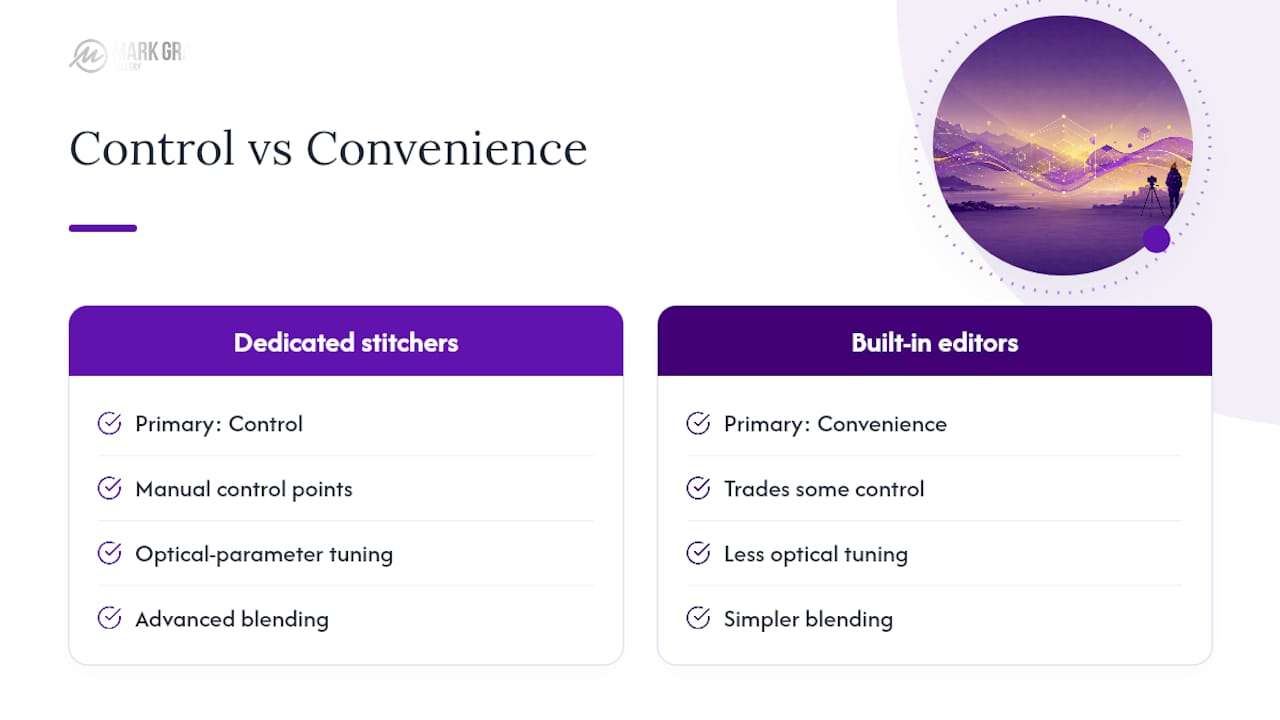
Choosing panorama stitching software comes down to one question: are you optimizing for control or for convenience? Dedicated stitchers like Hugin and PTGui give you manual control points, optical-parameter tuning, and advanced blending. Built-in tools inside Lightroom Classic, Photoshop, Affinity Photo, and Capture One trade some of that control for a workflow that never breaks stride.
The table below lines up the tools photographers actually compare when shopping for panorama creation software, using the dimensions that determine whether a tool fits your workflow: price, learning curve, feature depth, and file compatibility.
A few of the names on your radar, like GigaPan / Autopano Giga, Autopano Giga (Kolor), PhotoStitcher, Panorama Stitcher Mini, and GigaPan Stitch, are legacy or niche tools without consistent current pricing or support data, so they sit outside the table but get their due below. Insta360 Studio and DJI Mimo also deserve a mention: they are not general panorama stitchers at all, but the bundled apps that handle stitching automatically for their own 360 and drone cameras.
What each pick actually gives you
Hugin is not pretty, and its interface intimidates people used to slick consumer apps. What it gives you in return is full access to lens correction parameters, an automated control point generator called CPFind, and built-in Enblend/Enfuse integration for HDR blending, according to the official Hugin project site. Two pros: it costs nothing, and it exposes optical corrections that most competitors hide. One con: the learning curve is real, and rendering complex panoramas takes longer than on hardware-accelerated paid tools.
PTGui trades Hugin's rawness for automation and speed. Photography Life's testing found it consistently produces professional results fast, with a visual masking editor that beats Hugin's more manual approach. Two pros: quick automated alignment and a mature masking interface. One con: the license cost only pays off if you stitch often enough to justify it.
Adobe Lightroom Classic keeps your panorama as a DNG file, which means you avoid a large TIFF or PSB intermediate and keep every edit fully non-destructive, a workflow advantage J. Kost details in her Lightroom Classic HDR panorama walkthrough. Two pros: zero context switching and DNG output that plays nicely with your existing catalog. One con: it lacks the manual control point editing you need when automated alignment fails.
Adobe Photoshop's Photo Merge handles the stitch, then hands you Content-Aware Fill and PSB support for genuinely enormous files. That combination matters for gigapixel prints where you need pixel-level cleanup after the merge.
Affinity Photo and Capture One both bundle panorama stitching into tools you may already own for other reasons. Affinity's one-off purchase makes it the budget-friendly alternative to Photoshop; Capture One's strength is raw processing quality first, panorama convenience second.
Luminar Neo and ON1 Photo RAW occupy similar ground: consumer-facing editors where panorama stitching is a bonus feature, not the main event. Both work fine for straightforward, single-row panoramas and struggle more as scenes get complex.
AutoStitch remains the fastest way to get a passable result from a handful of overlapping frames, with essentially no manual controls, according to Have Camera Will Travel's roundup of stitching apps.
Panovolo uses flight telemetry from your drone to assist alignment, which helps on aerial mosaics where ground-level control points are sparse. Metashape goes a different direction entirely: it is photogrammetry software first, with panorama and mosaic modes built for mapping and 3D reconstruction rather than fine-art landscape work.
The legacy names, GigaPan / Autopano Giga, Autopano Giga (Kolor), PhotoStitcher, Panorama Stitcher Mini, and GigaPan Stitch, mostly served gigapixel and robotic-panohead workflows in earlier years. Support and updates for several have slowed, so treat them as historical reference points rather than current recommendations unless you already own a compatible panohead rig. Insta360 Studio and DJI Mimo stitch automatically for their respective cameras and are worth knowing about if you shoot 360 content, but they are not substitutes for a general-purpose stitcher.
How Were These Panorama Tools Actually Tested?
Reliable panorama creation software reviews need more than a single test image. A trustworthy evaluation runs each stitcher against several distinct file sets:
- Single-row panoramas shot at consistent focal length and exposure.
- Multi-row grids covering wide fields of view, the kind that produce gigapixel files.
- Drone-captured aerial mosaics with sparse overlap and shifting altitude.
- Scenes with moving subjects, water, foliage, or pedestrians that create ghosting.
- Architectural or interior scenes with heavy parallax near the nodal point.
Evaluation then comes down to five criteria that separate a usable stitch from a frustrating one:
- Stitch accuracy: does the software align seams without visible doubling or warping?
- Blending quality: how well does the tool hide exposure and color shifts between frames?
- Parallax handling: does the software let you correct or does it just guess?
- HDR and multi-row support: can it merge bracketed exposures across a full grid without falling over?
- Output flexibility: does it export DNG, TIFF, PSB, or only a flattened JPEG?
Render time matters too, and it varies more than most buying guides admit. Hugin's manual pipeline and CPU-bound rendering make it noticeably slower than PTGui's more optimized engine, which is the tradeoff the Hugin manual itself acknowledges when it recommends the tool specifically for photographers who value precision over turnaround. Hardware matters too: a stitch that takes four minutes on a current workstation can take twenty on an aging laptop, so any benchmark timing should be read as a comparison between tools on the same machine, not an absolute promise.
One honest limitation: no single test set covers every lens, sensor, and shooting style a reader will bring to their own panoramas. Treat these findings as a strong starting point, then run your own trial images through the shortlist before committing.
Which Software Handles the Hardest Panoramas?
Most panorama software handles a clean, single-row, evenly lit scene without much drama. The differences show up on the hard cases: gigapixel mosaics, drone footage, moving water, and parallax-heavy interiors.
Multi-row and gigapixel panoramas push memory and file-format limits fast. Hugin and PTGui both export large tiled outputs, but the right choice depends on your endpoint. If you need to keep editing in Photoshop afterward, a PSB export makes sense; if you are building a multi-tile print pipeline, a tiled TIFF workflow serves you better, a distinction Photography Life's stitching guide calls out directly.
Drone and aerial panoramas create a different problem: sparse control points because there is often less overlap detail at altitude than in ground-level shots. Panovolo leans on flight telemetry to fill that gap. Interestingly, general-purpose Hugin can still outperform some specialized aerial apps on final render quality, even without telemetry assistance, based on the same 2025 hands-on comparison referenced earlier.
Moving subjects and ghosting need either automated ghost removal or manual correction. Enblend, which Hugin integrates directly, handles a lot of minor ghosting during the blending stage. When a person or a car moves significantly between frames, though, no automated blend will save you. That is when you go back into the source frames and manually choose which exposure to keep in the overlap zone.
Parallax-heavy scenes, think close foregrounds shot from a tripod that was not perfectly centered on the lens's nodal point, are where dedicated stitchers earn their keep. Hugin exposes per-lens optical parameters that many GUI-focused competitors bury or omit entirely, letting you manually correct distortion the automated aligner could not resolve on its own.
If ghosting shows up there, you already know whether you need manual control points or whether the automated blend will handle it.*
How Do You Choose Panorama Software for Your Own Workflow?
Start by matching software to what you actually shoot, not what looks impressive in a feature list.
- Enthusiasts stitching occasional travel or landscape shots should start with whatever raw editor they already own. Lightroom Classic or Capture One will cover 90 percent of casual panorama needs.
- Travel photographers who shoot handheld, without a tripod or nodal rail, benefit from Photoshop's Photo Merge, which tolerates more handheld drift than a strict manual stitcher.
- Studio and gigapixel shooters need Hugin or PTGui, full stop. Both expose the optical-parameter and control-point tools that large mosaics require.
- Drone mapping operators should evaluate Panovolo first, then fall back to Metashape if the project is really a photogrammetry job rather than a straightforward aerial panorama.
- Fine-art gallery print photographers need the combination: capture discipline in the field, plus a stitcher (usually Hugin or PTGui) that can output a file large enough for wall-scale prints without visible seams.
Watch for these red flags regardless of persona:
- No RAW or DNG support, which forces you into lossy intermediate files earlier than necessary.
- Weak or absent masking tools, which shows up as visible seams on any scene with moving elements.
- Limited projection options (only rectilinear, no cylindrical or equirectangular), which breaks wide-angle and 360 work.
- Slow or unreliable HDR merge, which turns a five-minute stitch into a half-hour troubleshooting session.
The convenience-versus-control tradeoff is worth stating plainly: built-in editors like Lightroom Classic and Affinity Photo win on speed and workflow integration, since many mainstream raw processors bundle stitching for exactly this reason. Dedicated stitchers like Hugin and PTGui win when the scene fights back. Trial both approaches on the same difficult image before you buy anything.
What Capture Habits Reduce Stitching Problems Before You Even Open Software?
No stitching software fixes bad capture technique. Photographers who get the cleanest merges every time treat the shoot itself as the first stage of post-processing, not something separate from it.
- Mount your camera on a nodal rail or panoramic head so the lens rotates around its optical center, not the tripod's center. This single habit prevents most parallax errors before they happen.
- Overlap each frame by an appropriate amount recommended for stitching software. Less than that starves the stitcher of matching detail; more just adds unnecessary frames to process.
- Lock exposure and white balance across the sequence, or shoot full bracketed sets at every position if you are building an HDR panorama.
- Calibrate your lens profile once per focal length you shoot regularly. Distortion correction data feeds directly into how well Hugin's optical-parameter tuning performs.
- Shoot in RAW every time. The dynamic range advantage RAW format preserves gives your stitching software more data to blend seams smoothly, especially in high-contrast skies.
Many photographers see bigger quality jumps from mastering nodal point setup and consistent overlap than from buying a pricier stitcher; software cannot fully correct for a badly captured sequence, according to professional photography services advice. That is worth sitting with before you spend money on an upgrade.
On the output side: keep your working files as DNG for as long as possible, and only convert to TIFF or PSB when you genuinely need layer-based editing in Photoshop. Non-destructive raw workflows preserve your ability to reprocess a panorama months later without starting from scratch. For social or web export, downsize only at the final export stage, never before, so you retain full resolution for print sales.
Pro Tip: Build a repeatable field checklist: camera, nodal head, 25–30 percent overlap, locked exposure or full bracket set, RAW capture. Run through it the same way every time and your stitching software will spend less time fighting your files and more time producing a clean result on the first pass.
What Should You Actually Do Next?
For the enthusiast shooting occasional travel scenes, the next step is simple: try Lightroom Classic's Photo Merge on your next trip and see if it covers your needs before spending on anything else.
For the landscape pro chasing gallery-scale prints, download Hugin, run a three-image test first, then a complex multi-row set from a real shoot, and judge the output at full resolution.
For the drone operator, trial Panovolo against a telemetry-rich flight before deciding whether Metashape's heavier photogrammetry toolkit is actually necessary for your project.
For the studio or gigapixel shooter, compare PTGui's speed against Hugin's precision on the same difficult file set. Whichever wins that test earns your workflow.
Across all four, remember the file-format tradeoff: DNG keeps you flexible and non-destructive, TIFF suits print pipelines, and PSB is for when Photoshop layers are non-negotiable. And if your test stitches keep failing on the same kind of scene, the fix is often in the field, not the software: revisit your overlap and nodal point setup before you blame the tool.
Why Getting This Choice Right Matters More Than It Seems
Every panorama I have ever hung on a gallery wall started as a stitching decision made months earlier, often before I had even reviewed the files. The software you pick determines whether a scene with moving water or a tricky foreground rock actually survives to final print resolution, or whether you spend a weekend manually painting out ghost artifacts that better capture technique would have prevented.
What surprises people is how much of "which software is best" actually resolves into "which capture habits did you bring to the shoot." A $150 dedicated stitcher will not rescue a panorama shot without nodal point discipline, and a free tool like Hugin will outperform an expensive one when the underlying frames were captured with care. The software matters, but it is the second decision, not the first.
Print quality at gallery scale exposes every shortcut in the stitching pipeline; that discipline is reflected in the limited edition prints available through the Mark Gray Gallery.
Improve Your Panorama Results Before You Ever Open a Stitcher
Software solves half the problem. The other half happens in the field, before you press the shutter, and that is where most panorama frustration actually starts. A one-day photography course or multi-day landscape workshop with hands-on nodal point setup, overlap discipline, and bracket strategy will save you more post-processing time than any software upgrade, because it fixes the source files instead of patching them afterward.
These sessions run across a range of landscape locations and cover the exact capture habits this article recommends: consistent overlap, locked exposure across bracket sets, and lens calibration that feeds directly into cleaner stitches back at your desk. You will also learn what separates a panorama that survives a gallery-scale print from one that only holds up on a phone screen, a skill set detailed further in the techniques covered in landscape photography courses. If you photograph professionally, working alongside experienced photography guidance sharpens the judgment calls software alone cannot make.
Check current workshop dates and book your spot at Markgray.
Where to Learn More About Panorama Stitching Tools
- Hugin manual: the definitive reference for optical parameters, control points, and Enblend/Enfuse workflow.
- Hugin Panorama official site: download links and feature documentation straight from the project.
- Photography Life's panorama software guide: a working photographer's comparative review of PTGui, Lightroom, and other stitchers.
- Have Camera Will Travel's stitching app roundup: a broad survey of free and paid options, useful for benchmarking price against features.
- J. Kost's Lightroom Classic HDR panorama tutorial: a step-by-step walkthrough for the DNG-based workflow inside Lightroom Classic.
Frequently Asked Questions
What is the best panorama software overall? Hugin is the strongest all-around choice because it handles complex, multi-row, and gigapixel panoramas with more precision than most paid alternatives, at zero cost.
What is the best free panorama stitching software? Hugin remains the top free option. AutoStitch works for very simple single-row panoramas but lacks the manual controls Hugin offers for harder scenes.
Is PTGui worth the price over free tools like Hugin? If you stitch panoramas often and value speed and a polished masking interface, PTGui's cost pays for itself. For occasional use, Hugin covers most of the same ground for free.
Can Lightroom Classic replace a dedicated panorama stitcher? For simple panoramas with consistent overlap and no moving subjects, yes. Once parallax or ghosting appears, switch to Hugin or PTGui for manual correction.
Which panorama software works best for drone photography? Panovolo uses flight telemetry to assist alignment on aerial mosaics, though general-purpose tools like Hugin can still match or exceed it on final render quality in some scenes.
Do I need RAW or DNG support in my panorama software? Yes, if you want to preserve editing flexibility. Lightroom Classic's DNG output keeps your working file non-destructive, while Photoshop's PSB support handles very large gigapixel files after stitching.
What causes ghosting in panoramas, and how do I fix it? Ghosting happens when a subject moves between overlapping frames. Enblend, built into Hugin, resolves minor cases automatically; significant movement usually needs manual control point correction.
Sources
- Hugin manual — Hugin documentation
- The Best Panorama App in 2025 ... is Completely Free? — A. Hutchinson (Substack)
- Best panorama stitching software — Photography Life
- Best photo stitching apps for panoramas — Have Camera Will Travel
- Hugin Panorama — Official site