
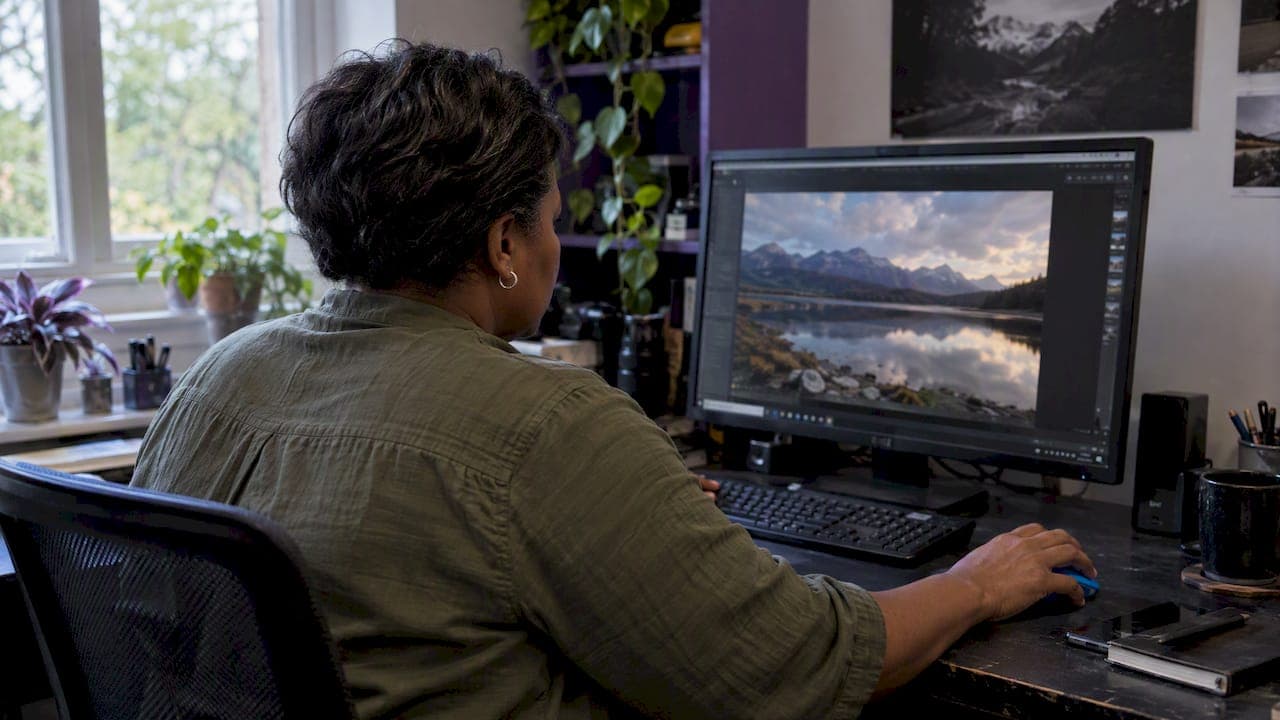
There is no single correct resolution for a website image. The right size depends on the space the image fills, the sharpness of the screen it is viewed on, and how fast the page needs to load. As a starting point, Shopify's image size guidelines suggest about 1920px wide for full-width banners, 1200px for main content images and 300 to 800px for thumbnails. The rest of this guide shows you how to adjust those numbers for your own layout, so landscape photos stay crisp without slowing your pages down.
TL;DR
- Resolution on the web means pixel dimensions, not DPI. A 72 DPI tag does nothing to how an image looks in a browser.
- Work out the width of the container, then multiply by 2 for sharp display on high-density (Retina-type) screens.
- Aim for web images well under 500 KB where you can, using WebP or AVIF with a JPEG fallback.
- Serve several sizes of each photo with
srcsetandsizes, so phones do not download desktop files. - Keep your full-resolution originals for print and licensing. Never use them directly on a page.
Table of Contents
- Pixels, not DPI: what resolution means on a screen
- Match the image to its container
- Sharp on every screen: pixel density
- Why bigger is not better
- Choose the right format
- Serve several sizes with srcset
- Reserve space and describe the image
- Our perspective: web files and print files are different jobs
- A quick checklist before you publish
- Using photography on a business website
- FAQ
- Sources
Pixels, not DPI: what resolution means on a screen
The word "resolution" gets used for two different things. In print, it describes how many dots are packed into each inch of paper, so DPI matters. On a website, the browser only cares about how many pixels wide and tall the image file is, and how big the space is that you give it in your layout.
That is why the old advice to "save web images at 72 DPI" misleads people. A 1200 x 800 pixel file displays identically whether its metadata says 72 or 300. What changes the result is the pixel count and the compression quality you choose when you export.
If you are preparing images for a printer rather than a screen, the rules flip. Our guide to what DPI you need for large prints and banners covers that side of the story.
Match the image to its container
The most common waste on photography websites is a file far bigger than the box it sits in. Chrome's Lighthouse audit flags exactly this: its Properly size images check lists images that are larger than they need to be and shows the kilobytes you could save by resizing them.
So the first question is never "what is the best resolution?" It is "how wide will this image actually appear?"
- Open your page in a browser and inspect the image. Note the rendered width in CSS pixels.
- Multiply by the screen density you want to support (usually 2).
- Export the image at that width, and no larger.
A 600px wide image block therefore needs a 1200px wide file for a 2x screen. Anything beyond that costs visitors bandwidth and buys them nothing visible.
Typical widths by use
These figures follow the Shopify guidance on banners, content images and thumbnails. Treat them as starting points, then check against your own theme.
| Use | Typical pixel width | Common aspect ratio |
|---|---|---|
| Full-width banner or hero | 1920px | 16:9 |
| Main content image | 1200px | 3:2 or 4:3 |
| Thumbnail or gallery tile | 300 to 800px | 1:1 or 4:3 |
| Image shown at half width on a 2x screen | 2 x its CSS width | Same as layout |
A banner at 1920 x 1080 is 16:9. A classic camera frame at 1200 x 800 is 3:2. Both are fine. Pick the ratio your layout calls for and crop once, deliberately, rather than letting CSS crop it by accident.
Sharp on every screen: pixel density
Modern phones, laptops and monitors pack more than one physical pixel into each CSS pixel. This is the device pixel ratio (DPR). A screen with a DPR of 2 needs an image twice as wide as its container to look sharp, and a DPR of 3 needs three times as wide.
The web.dev guide to image performance is a good reference for how these pieces fit together. In practice, most sites target 2x. The step up to 3x adds a lot of file weight for a gain few viewers can see, so it is rarely worth it for ordinary content images. For a hero photograph that is the centerpiece of the page, you may choose to be more generous.
Why bigger is not better
It is tempting to upload the biggest file you have. A 5000px image in a 400px thumbnail slot looks like a safe choice. It is not. The browser downloads every byte, then shrinks the picture on the device. The page loads slower, mobile data is wasted and search performance can suffer.
Speed is something Google measures. According to web.dev's explanation of Largest Contentful Paint, a good score is 2.5 seconds or less, measured at the 75th percentile of page loads. On a photography site, the largest element on screen is usually an image, so your hero photo largely decides whether you pass. If you want a wider look at how speed ties into rankings and sales, this piece on faster website speed and SEO conversions is worth your time.
A file size budget
Resolution and file size are linked but not the same thing. Two 1200px images can differ by a factor of ten in kilobytes depending on compression. A common target is under 500 KB per web image, and many content images will look identical at a fraction of that. A 20 MB file where a 200 KB one looks the same is a mistake that hurts both rankings and visitor patience.
A practical workflow:
- Export from your editor at the exact target width.
- Set JPEG or WebP quality around the point where you stop seeing artifacts in skies and gradients. These are the places landscape photos show damage first.
- Check the file size. If it is above your budget, reduce the width before you reduce the quality further.
- Strip unneeded metadata, unless you want copyright information to travel with the file.
Choose the right format
JPEG is still the universal baseline. The better options for photography today are WebP and AVIF, which keep detail while cutting file weight. The MDN image format guide describes each format and its browser support in detail.
WebP files are commonly cited as around 25 to 35 percent smaller than comparable JPEGs. AVIF can go further, though it takes longer to encode. Offer a JPEG fallback so no visitor sees a broken image.
| Format | Best for | Watch out for |
|---|---|---|
| JPEG | Photos where compatibility matters most | Larger files for the same quality |
| WebP | Most photography on modern sites | Keep a JPEG fallback for older browsers |
| AVIF | Hero images and large galleries | Slower to export, check your tools support it |
| PNG | Logos, screenshots, transparency | Heavy for photographs |
Serve several sizes with srcset
One file can never be right for every visitor. A phone in portrait needs a narrow image. A 4K desktop monitor needs a wide one. The solution is responsive images: you export several widths of each photo and let the browser choose.
The srcset attribute lists the available files and their widths. The sizes attribute tells the browser how wide the image will appear in your layout. The browser then picks the smallest file that will still look sharp on that visitor's screen. This is the approach recommended in the web.dev article on serving images with correct dimensions, which also suggests checking your analytics to see which display sizes your visitors actually use.
A sensible set of widths for a content photo might be 400, 800, 1200 and 1600px. For a full-width hero, add 1920px, and 2560px if you want to serve large monitors.

If you use a modern CMS or platform, it may generate these sizes for you. Check the HTML it outputs rather than assuming. Open the page source and look for srcset on your key images.
Reserve space and describe the image
Two small details finish the job.
First, set width and height attributes (or an aspect ratio in CSS) so the browser reserves space before the image arrives. This stops the page from jumping around as it loads.
Second, write alt text. The WCAG quick reference requires text alternatives for informative images, and missing alt attributes are a common cause of accessibility failures. Decorative images, such as spacers or background flourishes, should carry an empty alt="" so screen readers skip them. For a landscape photograph, describe what a visitor would miss without seeing it: the place, the light and the subject, in a sentence rather than a keyword list.
Our perspective: web files and print files are different jobs
We work with large, detailed landscape images every day. Mark Gray's prints are made from panoramic medium format film, and the files behind them are big, because a large print on a wall needs every bit of that detail.
Those same files should never go straight onto a web page. We keep two sets for every photograph. The master file is the one we protect, for printing and for commercial licensing. The web versions are smaller exports, cut to the widths our pages need, with compression tuned by eye on skies, water and distant ridgelines.

Photographers often worry that a web-sized file gives away too much, or that it undersells the work. We see it the other way. A fast, sharp page on a phone is the first impression of your photography, and a slow one is a lost visitor. A clean 1920px hero looks excellent on a monitor, and it is a long way from the resolution a gallery print or a splashback needs.
That gap is the reason we publish print-side guides too. If you are planning a large wall piece, see our notes on panoramic print sizes, ratios and DPI. If you are sharing work on social platforms, our Instagram export guide for landscape photos covers the sizes those apps prefer.
— Mark
A quick checklist before you publish
- Measure the rendered width of each image slot in your layout.
- Export at twice that width for sharp display on high-density screens.
- Choose WebP or AVIF, with a JPEG fallback.
- Check file size against your budget, ideally under 500 KB.
- Add
srcsetandsizesso smaller screens get smaller files. - Set width and height to prevent layout shift.
- Write alt text for informative images and an empty alt for decorative ones.
- Run Lighthouse and fix anything under the properly sized images audit.
Using photography on a business website
If you are a business choosing images for your own site, there are two routes: shoot your own, or license professional work. Licensed images arrive as high-resolution masters, which gives you room to create every web size you need from one source. Our guide on how to license photography for websites explains what to check before you commit.
We offer image licensing of Mark's landscape photography for websites, brochures, signage, splashbacks and more. If you would rather learn to capture and process your own landscapes, there are 1 day photography courses across Australia. And if what you want is the photograph itself on your wall, browse our limited edition prints, each made for exceptional detail at full size.
FAQ
What is the best resolution for website images?
There is no universal number. Start from the width of the space the image fills, then double it for high-density screens. As rough guides, banners often use 1920px, content images 1200px and thumbnails 300 to 800px. Test the result on a phone and a large monitor.
Do I need 72 DPI for the web?
No. Browsers ignore the DPI value stored in a file. Pixel dimensions and compression quality decide how an image looks and how quickly it loads. DPI only matters when you send a file to a printer.
Is 1920 x 1080 the right size for a website?
It works well for full-width banners and hero images with a 16:9 shape. It is too large for most content images and thumbnails, where 1200px or less is enough. Use srcset so mobile visitors download a smaller version.
How big should a web image file be?
A common target is under 500 KB, and many photos look the same at far less. If a file is heavy, reduce the pixel width first, then adjust compression. Modern formats like WebP and AVIF help you keep detail at lower weights.
Sources
- Website Image Size Guidelines, Shopify
- Properly size images, Lighthouse, Chrome for Developers
- Image performance, web.dev
- Largest Contentful Paint, web.dev
- Serve images with correct dimensions, web.dev
- Image file type and format guide, MDN
- How to Meet WCAG Quick Reference, W3C